
 The original file
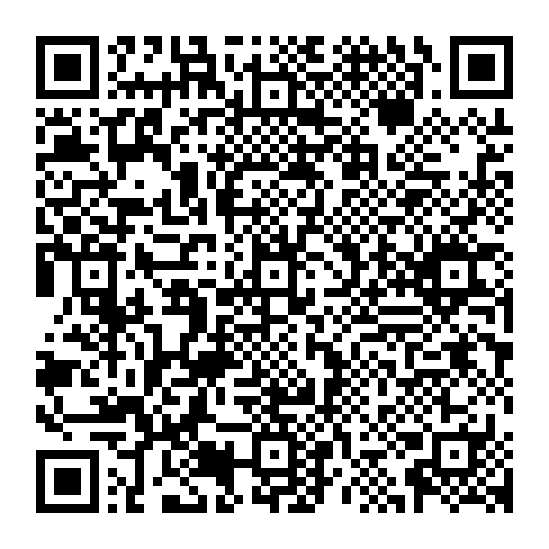 1
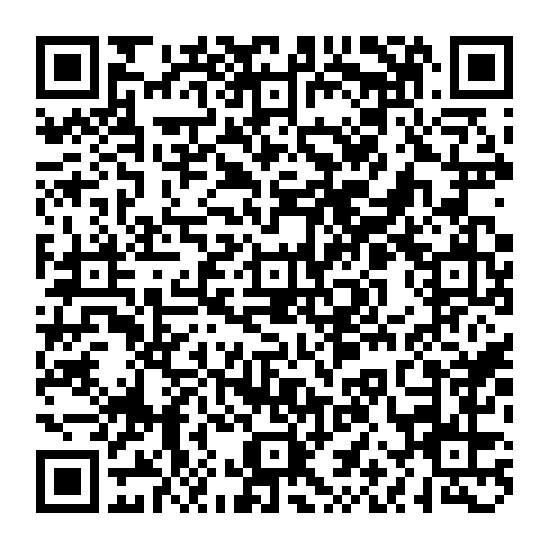 2
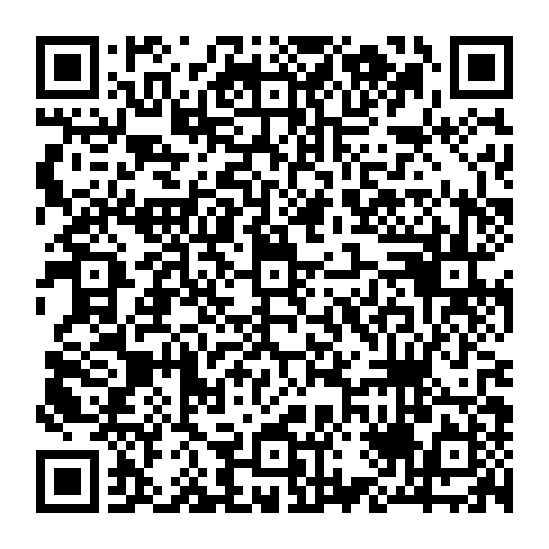 3
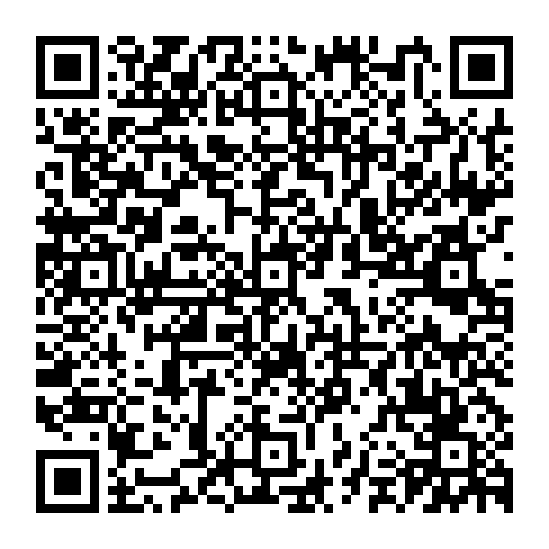 4
How does the picture get across?
A QR code that links to an online photo holds the address where you can download it. In our test, the codes held the drawing itself. That gave the reader everything it needed to rebuild the file offline.
In the video below, the four black and white squares appear on screen one at a time, a second apart. The reader can pick them up in any order. Each piece carries its own number and the total number of pieces. Even if the reader sees “4 of 4” first, it knows to look for three more.
An open-source tool called qr, shared on Hacker News on October 28, illustrates the idea. To see what happens when a piece goes missing, we made a video using BBQr, one of the formats the tool supports. Original announcement · How the BBQr format works
What if you miss a code?
We replaced the third code with a second of blank gray video. On the first pass, the reader picked up pieces 1, 2 and 4. It held on to all three. The file was still incomplete.
On the second pass, codes 1 and 2 came round again, then code 3. The Mac already had piece 4, so as soon as it read piece 3, it could rebuild the sailboat. We repeated the test with all network access blocked and compared the copy with the original. All 443 bytes matched.

The test video alongside the pieces the Mac actually read. Open the video
Can you do this with a phone?
For the iPhone test, we used QR Strobe in Safari. The reader uses its own format, so we made four compatible codes from the same drawing. Once the transfer finished, we could open voilier.png on the iPhone.
To try it with your own picture, open QR Strobe on both devices. On the computer, choose your file under Send. On the iPhone, tap Receive, then Start Camera. Start the sequence on the computer and point the phone at the screen. Once all the pieces arrive, tap Save File and open the picture. Open QR Strobe
Share this article